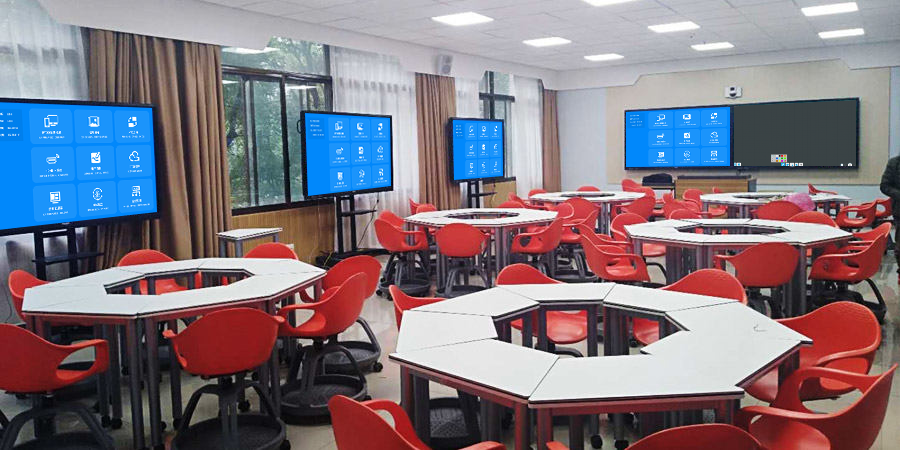
Multi-Screen Interaction: More Efficient Device Collaboration
Want to break free from the limitations of computers, phones, and large screens “operating independently“? This screen mirroring device easily sets up multi-screen interactive scenarios! It supports real-time content flow, two-way operation, and synchronized annotations across multiple devices, covering office collaboration, family sharing, and training interactions. With no complex setup, it allows multiple screens to work together, enhancing both efficiency and experience.
1-Minute to Set Up an Interactive Environment, Zero Technical Threshold
The operation is so simple that the whole family can use it:
- Quick Device Connection and Networking: Plug the screen mirroring receiver into the main screen (conference screen/TV/projector) and power it on. The large screen will display the dedicated interactive group name. Plug the transmitter into your computer (phones/tablets only need to connect to the same Wi-Fi; if there’s no network, you can connect to the mirroring device’s hotspot). Devices will automatically join the interactive group, completing the connection in 10 seconds.
- One-Tap to Start Collaboration: Click the screen mirroring device’s “Interactive Mode” on your computer. Scan the QR code with your phone/tablet to confirm. Multiple screens will instantly synchronize, and lesson plans, photos, and videos can flow across devices. No software installation is required throughout the entire process, and new users can learn by watching once.
Core Advantages: More In-Depth Multi-Screen Interaction
Content Flows Across Screens, Breaking Device Barriers
- Instant Material Transfer with No Lag: Proposal documents from your computer, on-site photos taken with your phone, and mind maps drawn on your tablet can be instantly transferred to other screens with the mirroring device’s “cross-device pushing.” No need for USB drives or WeChat transfers, boosting file transfer efficiency by 70%.
- Complementary Multi-Screen Display: The main screen displays core content (e.g., meeting proposals, teaching lesson plans), the side screen shows auxiliary materials (e.g., data charts, experimental videos), and phones/tablets provide real-time details. Multi-screen collaboration makes information transfer more comprehensive and understanding more thorough.
- Collaborative Editing: Initiate document editing on your computer. A tablet can continue annotating, and a phone can add text. All modifications are synchronized to all screens in real-time, eliminating repetitive file transfers for multi-person collaboration and ensuring a smoother flow of ideas.
Two-Way Interactive Operation, More Flexible Experience
- Unrestricted Cross-Device Control: After casting content from your computer to the main screen, you can use your phone to remotely flip pages, pause, and annotate. When a tablet displays a design draft, the computer can simultaneously retrieve reference materials and push them to the side screen. Operations are not limited by devices; control follows you wherever you go.
- Real-time Collaborative Annotation: During office discussions, multiple people can annotate proposal details on different devices (e.g., highlighting on a computer, suggesting on a phone). Annotations are synchronized to all screens in real-time, eliminating the need to huddle together. Remote collaboration feels like “face-to-face” interaction.
- Dynamic Data Synchronization: In training and teaching, student answer results and interactive feedback are automatically summarized by the mirroring device, generating charts that are cast to the main screen. The instructor can intuitively grasp progress and adjust the pace in time, avoiding “one-way output.”
All Devices, All Scenarios, Perfect Compatibility
- It covers all operating systems: Windows, macOS, iOS, and Android. The compatibility rate for computers, phones, and tablets from brands like Lenovo, HP, Apple, Huawei, and Xiaomi exceeds 98%. Even old devices can interact smoothly, so you’re not limited by model.
- It supports screen mirroring (full-screen synchronization), targeted pushing (transmitting only specific content), and split-screen display (presenting multiple contents simultaneously). Switch as needed to meet different scenario demands.
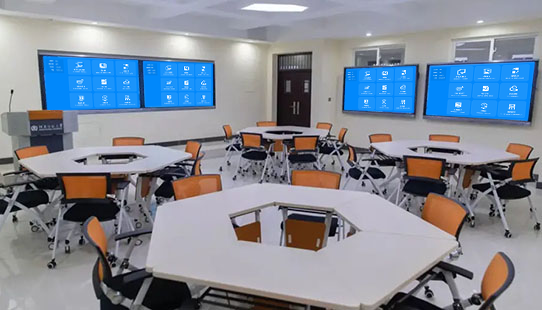
Applicable to All Scenarios: Multi-Screen Empowers Various Fields
Office Collaboration: Doubled Efficiency
- During proposal discussions, the computer casts the framework to the main screen. Colleague A annotates modification suggestions on a tablet, and Colleague B takes photos of competitor products on their phone to supplement. All content is synchronized in real-time. Discussions don’t require repeatedly switching devices. You can complete 3 rounds of proposal optimization in 1 hour, boosting meeting efficiency by 40%.
- In remote meetings, the local team uses multiple screens to display proposal details. Remote colleagues join the interaction with their phones/computers, annotating and asking questions in real-time. Cross-regional collaboration feels like “being in the same room,” making communication more efficient.
Family Sharing: Warmer Atmosphere
- During family gatherings, take turns casting travel photos and children’s growth videos from phones to the TV. A tablet can simultaneously play background music, and a computer can retrieve old photos to supplement. Multi-screen cooperation creates a “family memory exhibition.” No need to crowd around a small screen, making sharing more enjoyable.
- When children attend online classes, the computer casts the course to the TV (large screen for eye protection). A tablet is used for note-taking, and a phone is used for looking up information. Multi-screen division of labor is clear, increasing learning focus. Parents can also remotely control the course progress with their phones at any time.
Training Interaction: More Dynamic Teaching
- The instructor casts lesson plans from the computer to the main screen. A tablet provides real-time annotations of key points, and a phone pushes in-class questions to trainee devices. Trainee answer results are automatically summarized into charts and cast to the main screen. Targeted explanations of incorrect questions boost interaction rates by 60% compared to traditional teaching.
- In practical training, the main screen displays operation steps, and the side screen shows close-up details. Trainees use their phones to take photos of their operations and upload them. The instructor annotates and guides on the main screen, eliminating the need to check each workstation individually, boosting training efficiency by 40%.
Practical Details: More Peace of Mind for Daily Use
- Stable Transmission and Anti-interference: Dual-band (2.4GHz+5.8GHz) transmission technology ensures that when multiple devices interact simultaneously, latency is less than 15ms, and the disconnection rate is below 0.1%. Critical scenarios like meetings and training won’t experience interruptions.
- Privacy and Security Guaranteed: Supports “interactive permission control,” allowing only authorized devices to join the interactive group. Mirrored content is encrypted during transmission, protecting office data and family photos from leakage.
- Portable and Easy to Store: The screen mirroring device is palm-sized, weighing less than 40g, making it easy to slip into a computer bag for business trips or travel. It allows for setting up multi-screen interactive scenarios in clients’ offices or outdoor training venues at any time, plug-and-play.
Whether for office collaboration, family sharing, or training, using this screen mirroring device to achieve multi-screen interaction can break down device barriers, allowing multiple screens to move from “independent use” to “collaborative effort,” making every interaction simple, smooth, and efficient.