If you are unable to project your phone content onto the TV, there may be multiple reasons. Here are some common problems and their solutions:
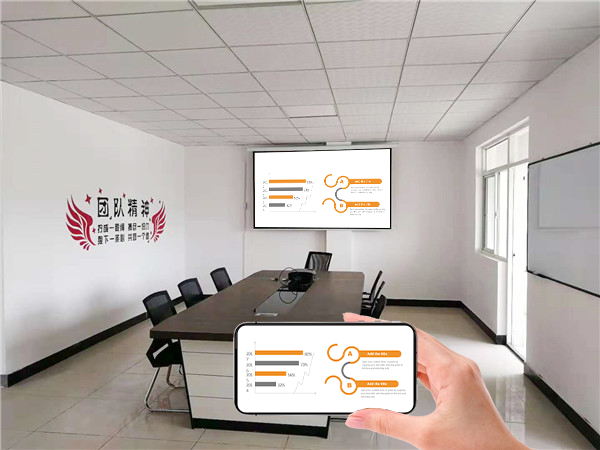
1.Equipment compatibility issues
The TV does not support screen mirroring function:
Ensure that your TV is a smart TV and supports screen mirroring function. Most modern smart TVs support screen mirroring protocols such as Miracast, Google Cast, DLNA, or AirPlay.
If your TV is not a smart TV or does not support screen mirroring function, you can consider purchasing external devices such as screen mirroring boxes or smart TV sticks to achieve screen mirroring.
Mobile phone and TV are not compatible:
Some mobile phone or TV brands may have compatibility issues. In this case, you can try updating the software version of your phone or TV, or refer to the device’s manual for more compatibility information.
2.Network connectivity issues
Not connected to the same WiFi network:
Ensure that both your phone and TV are connected to the same WiFi network. The screen mirroring function requires devices to be on the same network in order to recognize each other.
Network instability:
If the WiFi network is unstable or slow, it may cause screen mirroring failure or lag. You can try restarting the router or adjusting network settings to improve network stability.
3.Screen mirroring settings issue
Screen mirroring function not enabled:
On your phone, make sure you have turned on the screen mirroring function and selected the correct screen mirroring device.
On the TV, make sure you have enabled screen mirroring and allowed connections from your phone.
Screen casting permission restricted:
Some applications may not support screen casting or require specific permissions to cast screens. You can try updating the app or adjusting the device settings to solve the problem.
4.Third party application issues
Using third-party screen casting applications:
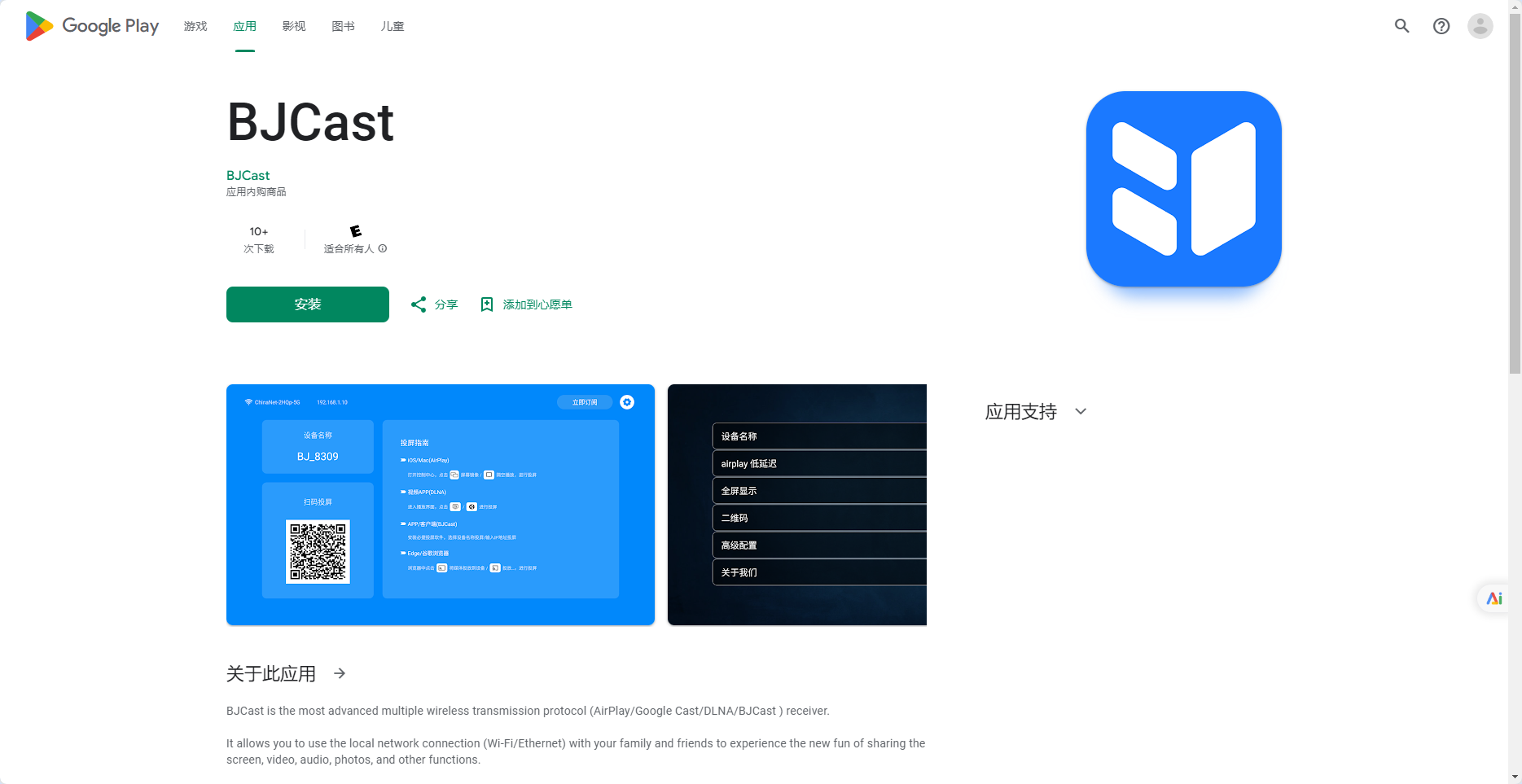
If your phone or TV does not support the built-in screen mirroring function, you can try using a third-party screen mirroring app to achieve screen mirroring. For example, the “BJCast” application supports connections between multiple devices.
Incompatible application version:
Ensure that the third-party screen casting application you are using is compatible with your phone and TV operating system versions.
5.Other possible issues
HDMI cable connection issue:
If you are using an HDMI cable to connect your phone to a TV, make sure that the HDMI cable, adapter, and connection port are all working properly.
TV input source not switched:
If you are using an HDMI cable or other external device, make sure the TV is switched to the correct input source.
